
If your Teams chat list is getting crowded, two new sections should make it easier to manage. Here’s what is changing, when it arrives and how your team can make the most of it.
What’s changing, and when
Microsoft Teams is introducing two new sections to help tidy up your chat list:
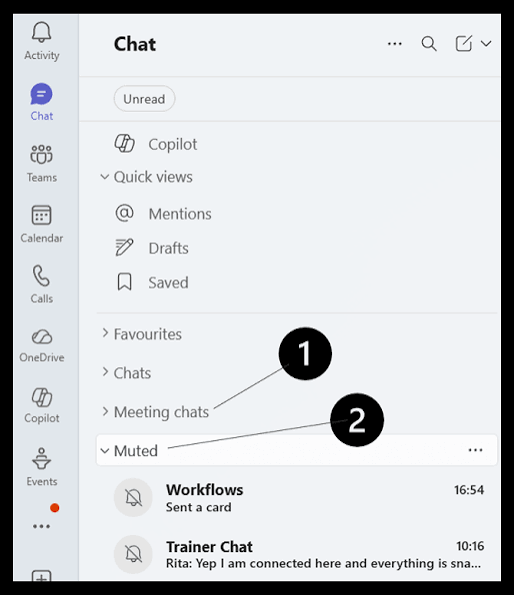
- Muted chats: switched on by default. Any chats you have muted are grouped together at the bottom of your chat list.
- Meeting chats: switched off by default. When you turn it on, chats linked to meetings get their own section below your main chats.
Rollout is expected between early and mid-November 2026 across Teams on desktop, Mac, web, iOS and Android.
Microsoft first announced the feature in April 2026 and briefly introduced it over the summer before withdrawing it. The November timing is now confirmed, although dates can still change, as with any Microsoft 365 update.
How the Muted chats section works
Muted chats will automatically move to a section at the bottom of your chat list, keeping your main view a little clearer.
- Unread muted chats still appear in bold.
- Chats in Favourites or custom sections stay where they are.
- Prefer the current layout? You can switch the Muted chats section off.
How the Meeting chats section works
If meeting conversations are filling your main list, the optional Meeting chats section gathers them together below it and replaces the existing filter.
- Unread meeting chats stay bold and count towards notification badges.
- Meeting chats in Favourites or custom sections stay where they are.
To switch it on:
- In Teams, select Settings and more (the three dots next to your profile picture).
- Go to Settings > Chats and channels.
- Switch on Show meeting chats in their own section.
You can also drag both sections into the order that works best for you.
What this means for your team
A few simple habits can help everyone settle into the new layout:
- Favourite priority chats. They will stay in place.
- Take a quick look at muted chats now and then. Muted does not always mean unimportant.
- Try the Meeting chats section. It can make a busy main list easier to scan.
What business owners and IT leads need to know
There’s no admin action required, and each user can organise the two sections in the way that suits them. Because there are no central admin controls, a quick update will help everyone know what to expect.
A few helpful steps before rollout:
- Let staff know the change is coming, so a reorganised chat list doesn’t come as a surprise.
- Share the steps to turn on Meeting chats, or to switch off Muted chats if people prefer the old layout.
- Make sure anyone handling internal IT queries knows that “missing” chats may simply have moved to the Muted chats section.
How Kriston Technology can help
Keeping up with Microsoft 365 changes can take time. As a Microsoft 365 partner, Kriston Technology explains what matters in plain English and helps your team get more from the tools you already use.
If you’d like a clearer view of your Microsoft 365 priorities, book a free Discovery Call with our team.



Comments are closed